
Plugin Settings for EdfaPay WooCommerce
This section provides a clear, step-by-step guide for configuring Redirect Checkout using the EdfaPay WooCommerce plugin.
In this mode, customers are redirected to EdfaPay’s secure payment page to complete their transactions.
Prerequisites
Before you begin, ensure the following prerequisites are met:
- The plugin is installed and activated (see Plugin Installation).
- You have LIVE API credentials from EdfaPay.
- Your domain is SSL-enabled.
Steps to Configure Redirect Checkout
-
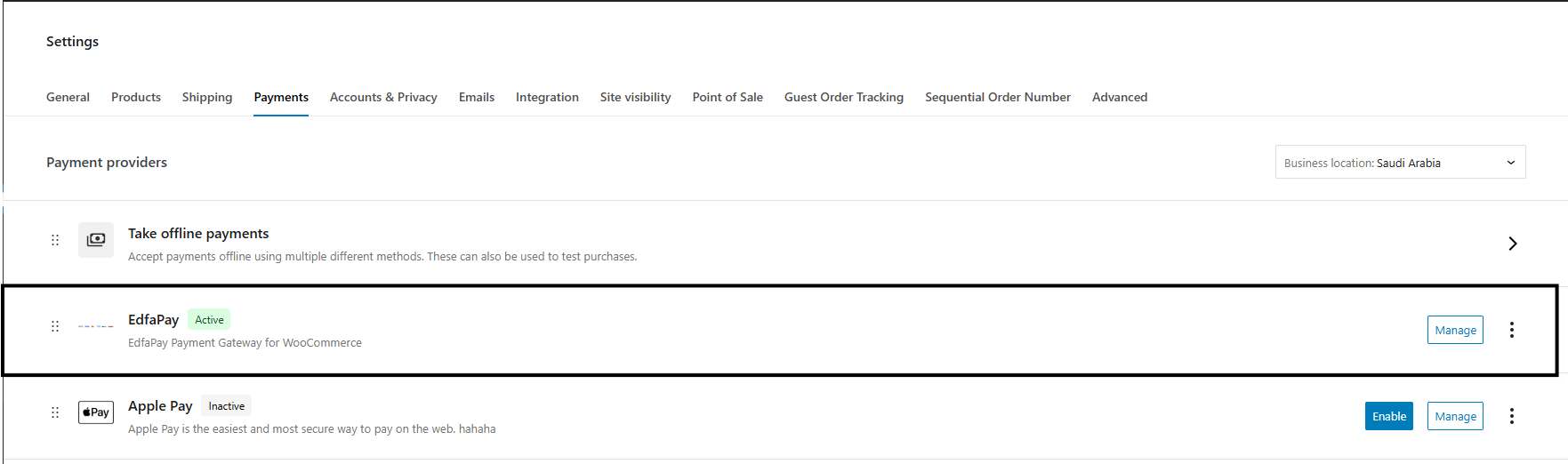
Navigate to WooCommerce → Settings → Payments. Locate EdfaPay in the list of available payment methods.
-
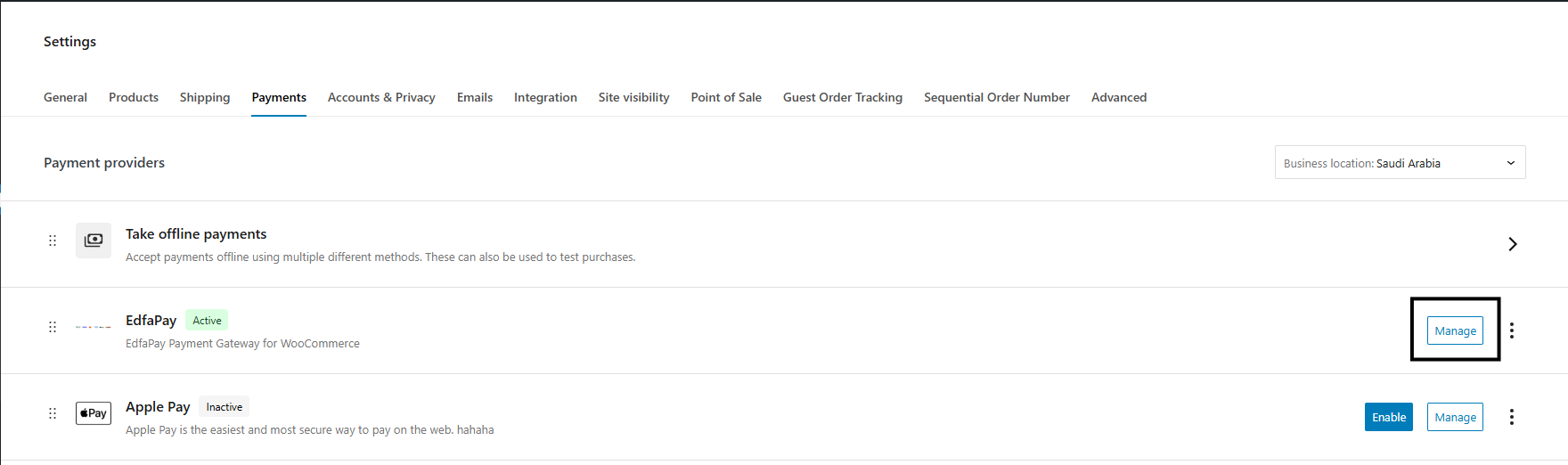
Click the “Manage” button next to the “EdfaPay” method to access its settings page.
-
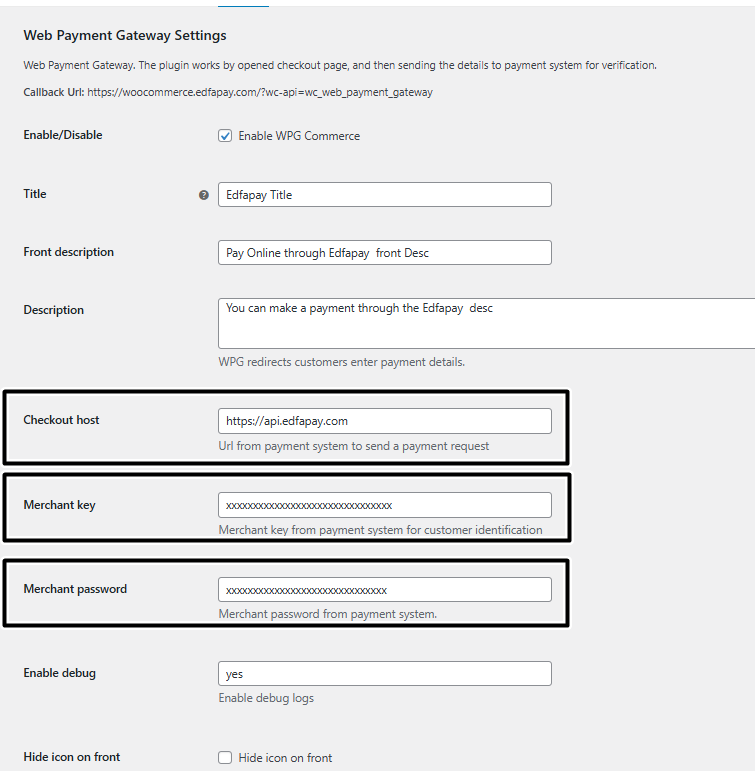
Complete the following required fields:
- Merchant Key
- Merchant Password
- Checkout Host → https://api.edfapay.com
- Enable debug → yes
-
Copy the Webhook URL shown in the settings and go to your EdfaPay dashboard. Navigate to settings / callback URL and paste this URL.

-
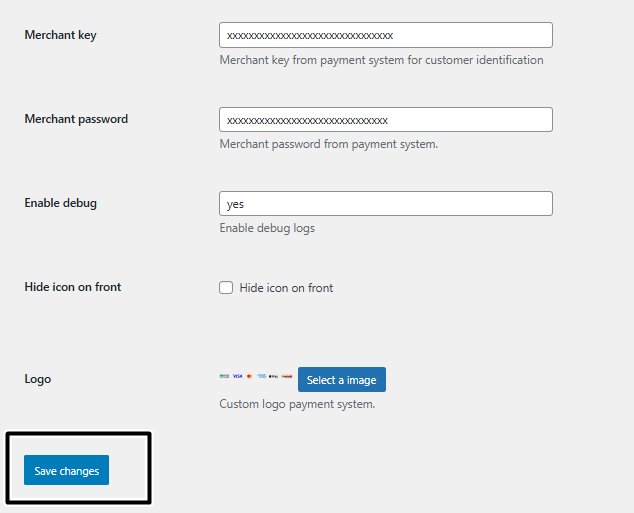
Save Changes. Once all settings are updated, scroll down and click the Save changes button.
The following table describes all available configuration fields in the EdfaPay WooCommerce plugin :
| Title | Value | Description |
|---|---|---|
| Enable/Disable | checked | Enables the EdfaPay payment method at checkout |
| Front description | Text to be displayed on the payment page | Text to be displayed on the payment page |
| Description | Description to be displayed on the payment page | Description to be displayed on the payment page |
| Checkout host | https://api.edfapay.com | EdfaPay API host used for payment redirection |
| Merchant key | <your merchant key> | Merchant identifier provided by EdfaPayy |
| Merchant password | <your merchant password> | Merchant password provided by EdfaPayy |
| Enable debug | yes | Enables logging for troubleshooting and testing |
| Hide icon on front | unchecked | Displays EdfaPay payment icons on the checkout page |
| Logo | Default (MADA, VISA, MasterCard) | Default card scheme logos displayed to customers |
Important Notes
- Callback URL: The Webhook URL shown in the EdfaPay plugin settings must be entered in your dashboard for proper transaction notifications.
For detailed steps on how to configure the Callback (Webhook) URL in the EdfaPay dashboard, please refer to the following guide:
https://docs.edfapay.com/update/docs/webhook-information- Checkout host: Ensure the URL is entered exactly as shown (https://api.edfapay.com) and does not contain any extra spaces.
Updated 5 months ago